Playbook · AI video
How to Make AI Videos: From Script to Finished Clip

An AI video is a video in which a generative model creates some or all of the footage from text, an image or a reference clip. The reliable way to make one is to write a short script, split it into single shots, generate each shot separately, then add voice, music and captions in a normal editor. This playbook walks through that workflow, explains the clip-length limits that shape it, and covers what to check before you publish.
Key takeaways
- Plan the video as a list of short shots, because generated clips are short and quality tends to drop as clips get longer.
- Choose the tool type first (text-to-video, image-to-video, avatar or editing), then the product inside that type.
- Prompt one subject, one action and one camera move per shot, and keep a fixed reference image for anything that must stay consistent.
- Generate voice, music and captions as separate layers and assemble everything in a video editor.
- Read each platform's disclosure rules before posting: YouTube asks creators to label realistic AI-generated scenes.
What does it take to make an AI video?
You need a script, a set of short generated shots, a voice or music track, and an editor to join them. The AI model produces the pictures; you still decide the story, the order and the pacing.
A text-to-video model is a form of generative AI that takes a natural language description as input and produces a relevant video (Wikipedia, Text-to-video model). Advances in this area have largely been driven by video diffusion models, which is the same family of technique behind many AI image generators.
In practice a finished AI video is rarely one prompt. It is a sequence of clips, each made on its own, then cut together like any other footage.
Which type of AI video tool should you start with?
Pick the tool type that matches the video you want, because each type solves a different problem. Using a text-to-video model to produce a talking presenter, or an avatar tool to produce a cinematic landscape, wastes credits.
Our software rankings cover each type separately, so you can compare products once you know the type you need.
- Text-to-video: you describe a scene and the model invents the footage. Best for atmosphere, b-roll and short concept shots. See AI video generators.
- Image-to-video: you supply a still image and the model animates it. Best when a character, product or brand look must match an existing picture.
- Avatar video: a digital presenter reads your script on camera. Best for training, explainers and sales messages. See AI avatar video generators.
- Voice generation: text becomes narration in a synthetic voice. Best as the audio layer for any of the above. See AI voice generators.
- AI video editing: cutting, captioning, resizing and cleaning real or generated footage. See AI video editors.
Most projects use two or three of these together. A common mix is generated b-roll, a synthetic voice-over and an editor that assembles both.
How do you write a script and shot list for an AI video?
Write the script as spoken sentences first, then break each sentence or idea into one shot. A shot list keeps every generation focused on a single visual, which models handle better than a multi-scene paragraph.
Keep the script short. If a clip is only a few seconds long, a 60-second video needs many shots, and each one costs time and credits to generate and review.
Write what the viewer sees, not what the story means. A model can draw a hand turning a key; it cannot draw the idea of trust.
- Goal: one sentence on what the viewer should know or do after watching.
- Format: horizontal, vertical or square, decided before you generate anything.
- Script: the full narration, read aloud once to check the timing.
- Shot list: one row per shot with the subject, the action, the setting and the camera move.
- Audio plan: voice-over, music and any sound effects, with a note where each starts.
- Fallback: for each shot, a stock clip or still image you could use if the generation fails.
How do you write a prompt that a video model can follow?
Describe one subject doing one thing in one place, then add a single camera instruction. Models misread prompts that pack several actions, characters or scene changes into one request.
Wikipedia's overview of text-to-video models notes that models may misinterpret prompts and produce videos that differ from the intended meaning. Short, concrete prompts reduce that risk, and our AI image prompts guide covers the same habits for still images.
Use plain nouns and verbs. Skip adjectives that carry no visual information, such as epic or stunning, and name the thing you want to see instead.
- Subject: who or what is on screen, with two or three visible traits.
- Action: one verb phrase, such as walks toward the camera or pours coffee.
- Setting: where it happens and the time of day.
- Camera: static, slow push-in, pan left, overhead, handheld.
- Style: one reference to look and lighting, such as soft window light or documentary color.
- Exclusions: anything you do not want, if the tool has a negative prompt field.
Save every prompt that works in a shared document. A tested prompt is the cheapest way to repeat a look across a series.
How long can an AI video clip be?
Clip length depends on the model, and it keeps changing, so check the current limit in the tool you use. The published figures give a sense of the range.
Google's current documentation describes Gemini Omni Flash as generating 3 to 15 second videos with native audio from text prompts and reference images (Google AI for Developers, Gemini API video documentation, 2026). Wikipedia lists ByteDance's Seedance 2.0 as generating up to 15 seconds in February 2026, Seedance 2.5 with 30-second native videos in July 2026, and a Lightricks LTX update in July 2025 with clips up to 60 seconds.
Longer is not automatically better. Wikipedia notes that quality tends to decline as video length increases, and a survey it cites found that systems often struggled to keep character appearance and scene layout consistent in videos longer than 16 seconds.
- Plan around the shortest limit among the tools you may use.
- Treat each clip as one shot of a few seconds, not a scene.
- Cut on action, so the join between two clips is hard to notice.
- Generate two or three variations of important shots and pick the best.
How do you keep characters and scenes consistent?
Anchor every shot to the same reference image and the same wording. Consistency is the weak point of the technology, so give the model as little room to improvise as possible.
Create one clean reference still of each character, product or location, using an AI image generator or your own photograph. Feed that still to an image-to-video tool for each shot, and keep the description of the subject identical across prompts.
Expect imperfections. In a 2025 evaluation of ten open-source and commercial systems, all scored below 0.60 on average in each of 12 physical-law categories (Wikipedia, Text-to-video model). Fine details such as hands and written text can also come out distorted or unreadable.
- Keep clothing, hair and props simple, because complex patterns drift between shots.
- Avoid on-screen text inside generated clips. Add titles in the editor instead.
- Use close-ups and medium shots for people, and keep hands out of frame when you can.
- Reuse the same aspect ratio, color style and lighting words in every prompt.
- Review every clip at full size before you move on, because small errors show up on large screens.
How do you add voice, music and captions?
Treat audio as its own layer and build it in the editor, even if the model can generate sound. Some current models create native audio, but a separate voice track gives you control over wording, pacing and corrections.
For narration, record your own voice or generate one with an AI voice generator. Read the script aloud first and mark any word the voice mispronounces, then respell it phonetically in the text input.
For presenter videos, an AI avatar video generator combines the voice and the on-screen speaker in one step. Check that the lip movement matches the words at normal playback speed.
Add captions last. Captions also make the video accessible to people who are deaf or hard of hearing.
- Voice-over: generate or record, then normalize the volume.
- Music: use a track you have the right to use in a video, and keep it below the voice.
- Sound effects: add only where they support an action on screen.
- Captions: generate automatically, then proofread names, numbers and product terms.
What is a step-by-step workflow for a finished AI video?
Follow the same eight steps each time, and the quality stays predictable. The order matters: decisions about format and script are cheap, while regenerating clips is not.
- Write the goal, the script and the shot list.
- Choose the tool types and check each tool's clip length, resolution and export limits.
- Create reference images for characters, products and locations.
- Generate each shot with one short prompt, and keep two or three takes of the important ones.
- Review each take at full size and discard clips with warped hands, text errors or physics problems.
- Generate or record the voice-over, then choose music.
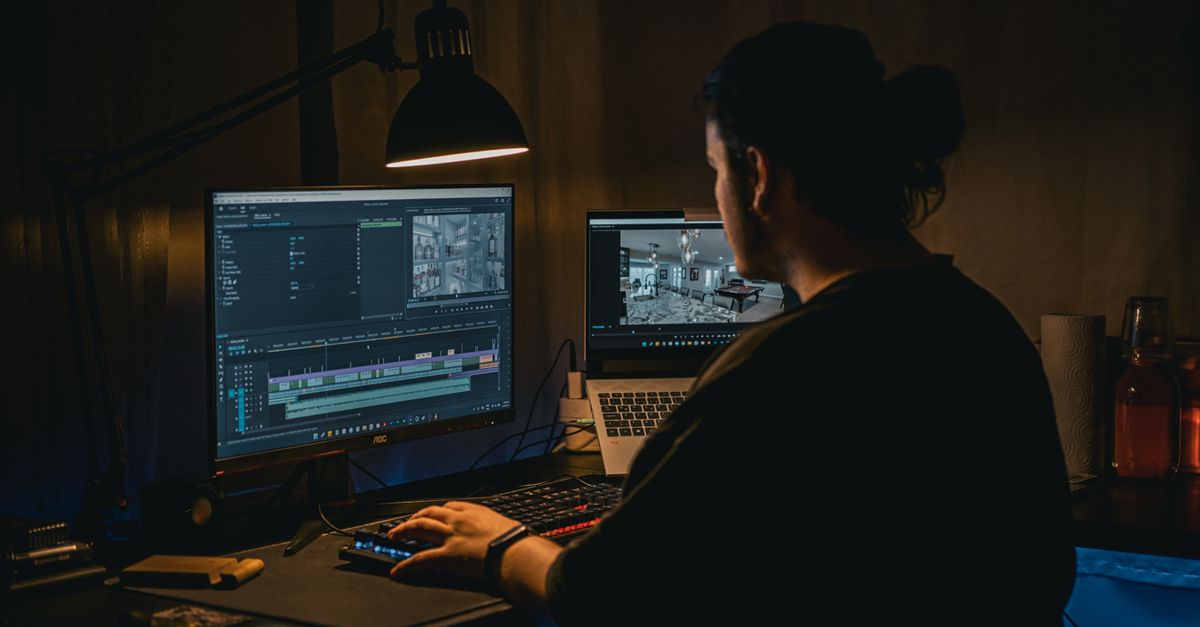
- Assemble the clips in an AI video editor or any editor you already use: trim, order, add captions, titles and audio.
- Export at the platform's recommended size, watch it once from start to finish, and publish with the correct disclosure.
Keep the project folder organized by shot number. When a client asks for a change to shot six, you can regenerate only that clip.
What should you disclose and check before publishing?
Label realistic AI-generated scenes where the platform requires it, and check the rights to every asset. The rules differ by platform and change over time, so read the current policy before each campaign.
YouTube asks creators to disclose realistic content that is generated or meaningfully altered with AI. Its help page lists four cases: making a real person appear to say or do something they did not do, altering footage of a real event or place, generating a realistic scene that did not actually occur, and creating music that is the main focus of the video (YouTube Help, Disclosing use of altered or synthetic content).
The same page says non-realistic content and minor edits do not need disclosure, and it lists beauty filters, background blur, captions, upscaling, voice or audio repair and idea generation as minor. It also says repeated failure to disclose can lead to manual labeling, content removal or removal from the YouTube Partner Program.
- Faces and voices: do not depict a real person saying or doing something they did not, and get written permission for any likeness you use.
- Terms of use: confirm that your plan allows commercial use of the output.
- Music and stock: keep the license for every track and clip you add.
- Provenance: some tools attach content credentials. C2PA is a non-profit effort that develops open technical standards for content provenance and authenticity, so keep this metadata when your export settings allow it.
- Copyright: read our guide to AI-generated images, copyright and commercial use, because the same questions apply to video.
What usually goes wrong, and how do you fix it?
Most failed generations come from prompts that ask for too much. When a clip looks wrong, simplify the prompt before you change the tool.
Wikipedia's overview of text-to-video models lists the typical failure modes: distorted hands, unreadable text, drifting character appearance and unrealistic physics. Use the fixes below as a first checklist.
- Warped hands or faces: switch to a closer or wider shot, or hide the hands.
- Garbled text on signs or packaging: remove text from the prompt and add it in the editor.
- Character changes between clips: use the same reference image and the same wording every time.
- Odd motion or physics: reduce the action to one simple movement.
- Clip does not match the prompt: shorten the prompt to one subject and one action.
- Output looks soft: upscale the final export; see our guide to upscaling images for the underlying ideas.
Frequently asked questions
Can you make an AI video from just a text prompt?
Yes. A text-to-video model takes a natural language description and produces a video. The result is a short clip, so a full video still needs several prompts, a script and an editor to join the clips with narration, music and captions.
Plan for several takes per shot, because the first result is often not the usable one.
How long can an AI-generated clip be?
It depends on the model and it changes often. Google describes Gemini Omni Flash as making 3 to 15 second videos, and Wikipedia reports Seedance 2.0 at up to 15 seconds and Seedance 2.5 at 30 seconds. A survey cited by Wikipedia found consistency often suffers beyond 16 seconds, so short shots are the safer plan.
Do I have to disclose that a video was made with AI?
On YouTube you must disclose realistic content that is generated or meaningfully altered with AI, such as a realistic scene that did not happen or a real person made to say something they did not. Minor edits and clearly unrealistic content do not need disclosure. Check the rules of each platform you publish on before posting.
Which is better, text-to-video or image-to-video?
Image-to-video is better when you need a specific character, product or look, because the model starts from your picture. Text-to-video is better for open-ended ideas and atmosphere. Many creators combine them: they create a reference image first, then animate it shot by shot.
Do I need a video editor if the AI tool already makes the video?
Yes, for anything longer than a single clip. An editor lets you trim takes, order shots, replace a weak clip, add titles that the model cannot spell reliably, mix the voice and music, and add captions. AI video editors can automate part of that work, but the assembly step remains.
Can I use AI videos commercially?
Often yes, but it depends on the tool's terms and your plan. Check whether the plan allows commercial use, whether the output carries restrictions, and whether any person's likeness or any trademark appears in the footage. Keep the terms of service you accepted, and see our guide on AI-generated images, copyright and commercial use for the wider picture.
Sources and further reading
- Text-to-video model, Wikipedia
- Disclosing use of altered or synthetic content, YouTube Help, Google
- Video generation with the Gemini API, Google AI Studio documentation
- About C2PA, Coalition for Content Provenance and Authenticity